.png)
Squarespace
This guide goes through the process of connecting your Squarespace store to Nexae. Once this has been set up, your Squarespace orders will automatically be imported in to Nexae, ready for a shipping label to be generated.
Integrating Your Store
Step 1) Press the integration button on the sidebar.

Step 2) Press the 'Add Integration' button and select the Sqaurespace option.
Step 3) You will be prompted to log in to your Squarespace account if you are not already. Nexae will request access to certain information, please ensure you read carefully. If satisfactory, then select 'allow' and you will be re-directed back to your Nexae dashboard.

Step 4) Once your store has connected to Nexae, it will display in a table on the 'Integrations' tab. If at any point you want to edit or delete the integration, then you can do so by using the icons to right of the table.

Step 5) If your Squarespace store is registered with IOSS, then you can edit your integration and enter the 12 digit code where prompted. Please ensure the IOSS number is also listed in your 'Customs Info' section in 'Settings'

Step 6) Map your Squarespace shipping rates within 'Settings' page under shipment rules, which will automatically convert your Squarespace shipping rate in to a Nexae delivery stream. For more on this, click here
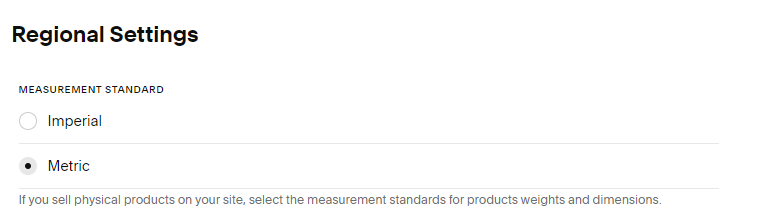
Step 7) Please ensure your shipment settings in Squarespace is set to metric measurements as all Nexae shipments are processed in Kg. To do this go to Settings > Language & Region > Regional Settings. From here, select metric and select 'Save'
Squarespace Products
When you integrate your store with Nexae, it will automatically populate the 'Products' page with products listed on your store. You also have the option to add products manually by clicking 'Add Products' in the top right hand corner of the 'Products' page.

When you initially integrate your Squarespace store with Nexae, you will need to add some extra details to the individual products listed in the table. This includes:
- The harmonisation code. If you don't know the correct commodity code then you can find it here
- The Origin of Goods. This is the country or region where the good was manufactured.
View Squarespace Shipments
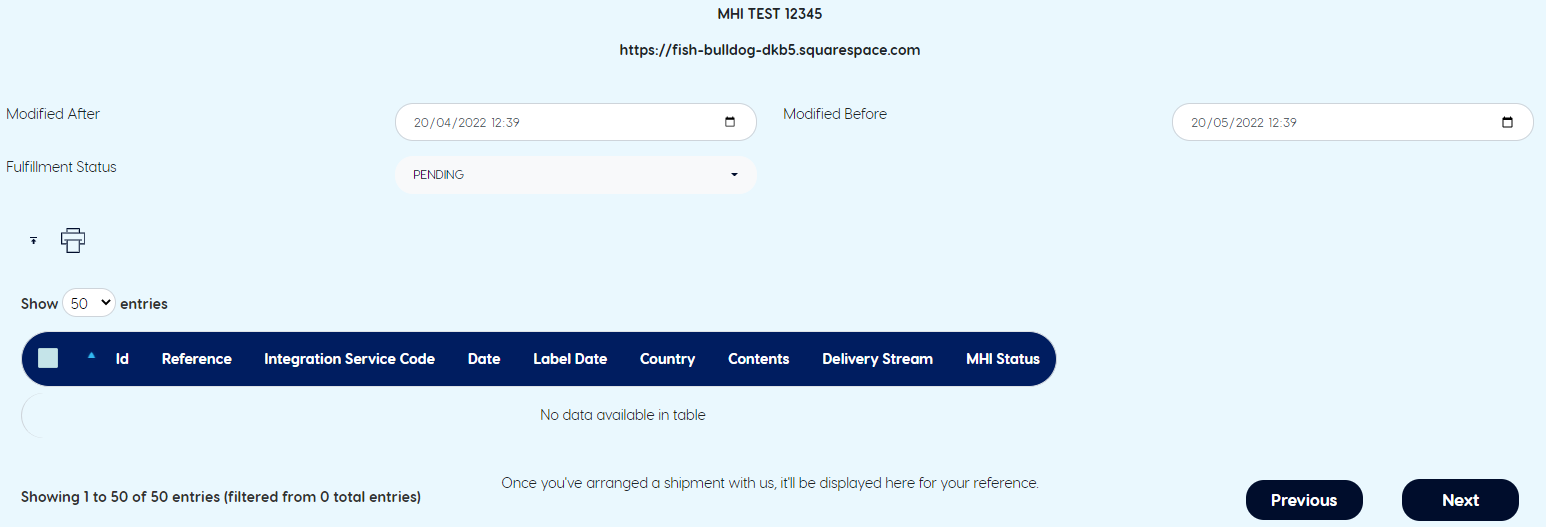
You can view your Squarespace orders from within Nexae by going to the 'Integration Shipments' page. Here, you will be able to print shipping labels, edit the address and track your shipments.