.png)
How to Manually Add Shipments & Produce Labels
Manual entry is for when a file is not available for upload, for example: a one-off return or a single mailing/parcel.
To get started, click “Shipments” on the left-hand menu to reveal dropdown options & click “Manually Add Parcels”.
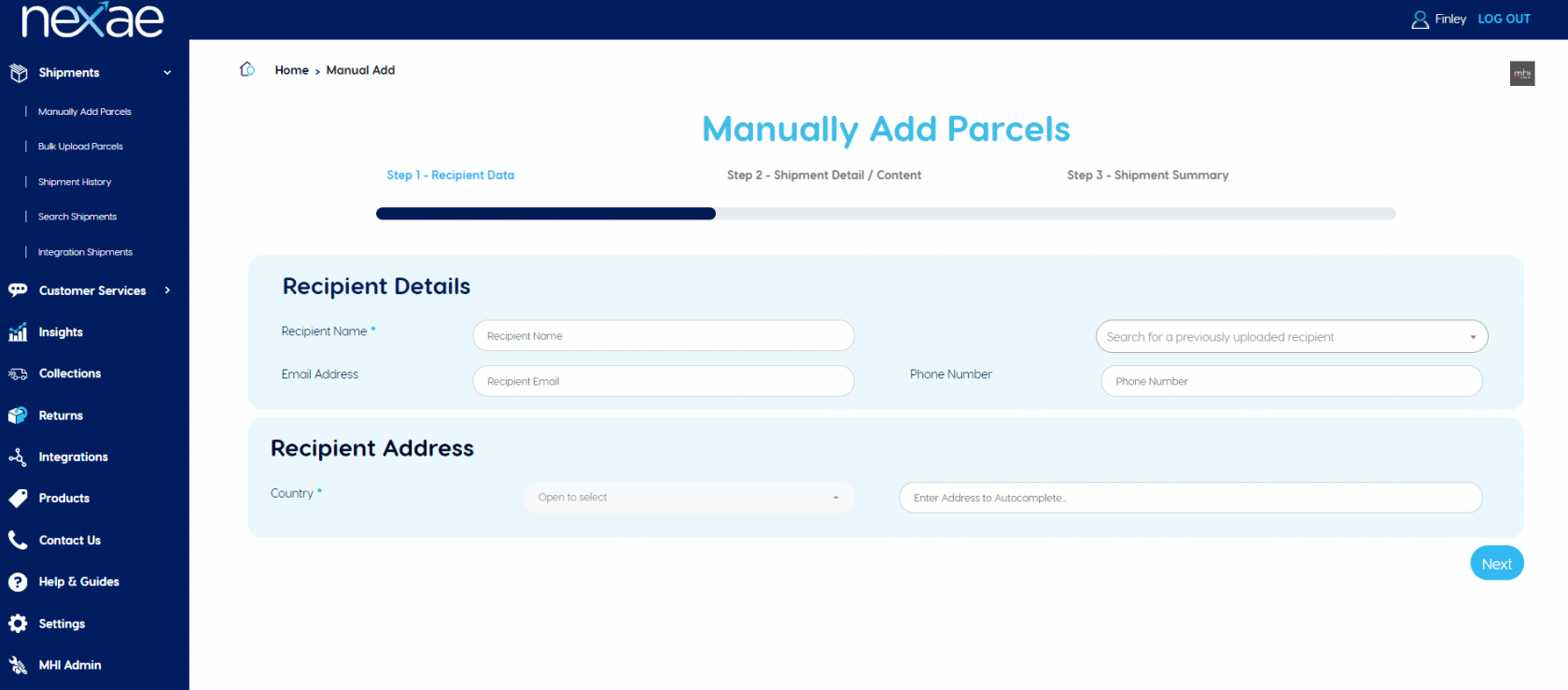
Step 1) Enter your recipients’ personal details such as name and email address. You’ll be able to enter address information once a country has been selected. At this point, Nexae will adjust the mandatory fields, so it only asks for required data. For example, postcodes are not mandatory in Ireland, so you won’t be forced to provide one.
Step 2) You’ll be asked for information about the parcel, such as the service level required and the contents for customs purposes. Customs information at this stage is crucial as this will be printed on your address label. Once completed, click save.
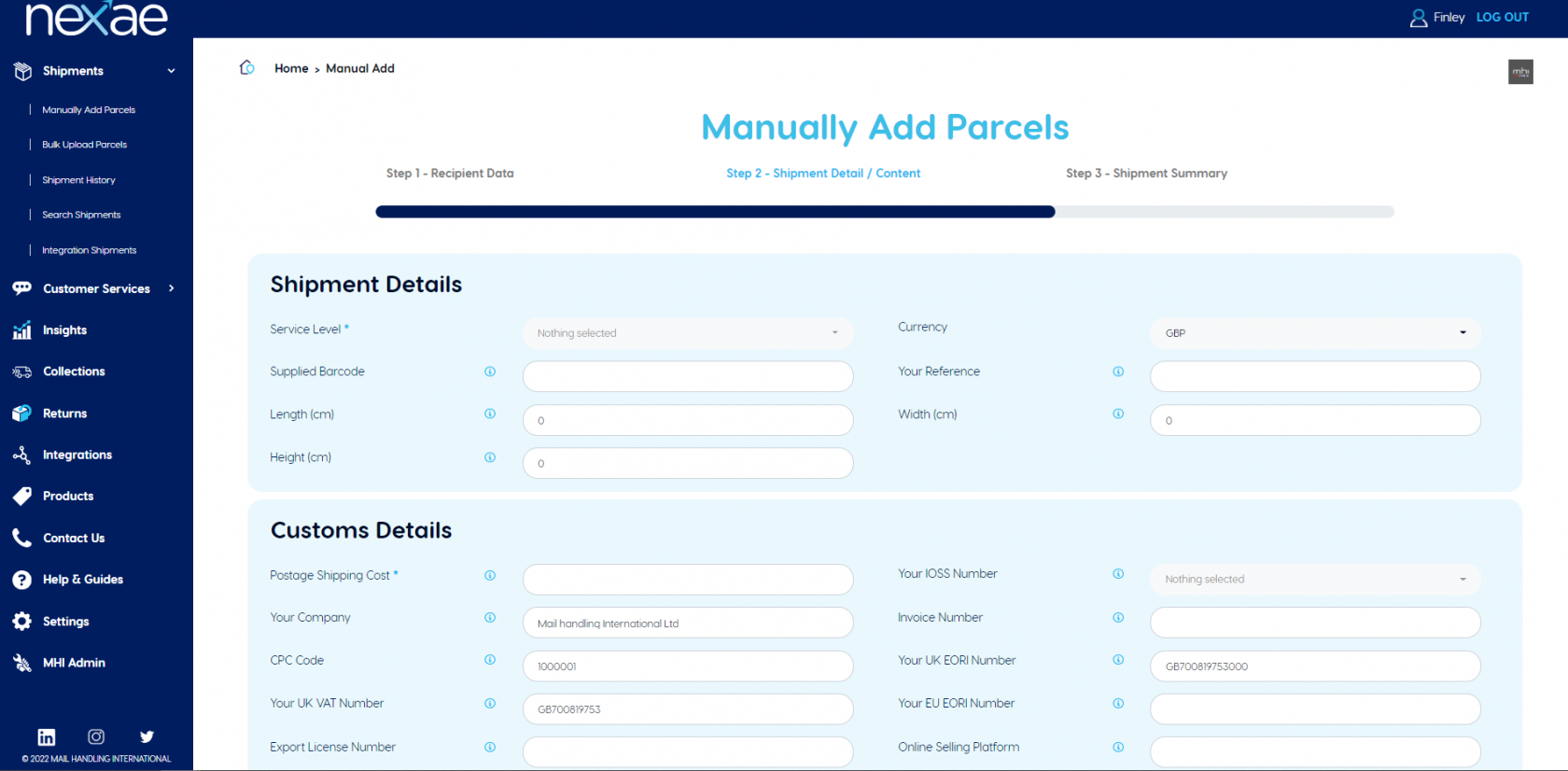
Tip: In settings, under ‘Shipment Rules’, you can re-name our service levels to something more meaningful to your firm. For example, you could rename “tracked” to “orders over £50”, or “Royal Mail Tracked”. You can also set default customs information if you only send one type of shipment.
Tip: Supplied Barcode can be mapped to a unique identifier, such as an order or return number. This will form your MHI tracking numbers, so this can be used to match your internal systems to ours. Please note that supplied barcode must be unique, else your parcel will not save!
Step 3) Will show you a summary of your shipment. Here data will be validated, and recommendations will be displayed (if any), such as “incorrect postcode for this city” – but these do not need to be acted upon. Errors will also be displayed, which would occur when the postcode format does not match that expected for the country - which must be corrected before closing the shipment.
Here you can make amendments or add more parcels / recipients.
- Once you’re ready to print, click “Print All Labels”.
- If you want to add more parcels to other recipients, click “Save & Add Another”.
- Once you’re done, click “Close Shipment” so we know your data is finalised.
Tip: You can add more parcels under the same "Upload ID" by clicking "Save & Add Another". This will take you through a process of manually adding more parcels.